

Laptop
Laptop Stuck on Loading Screen: How to Fix?
Mar
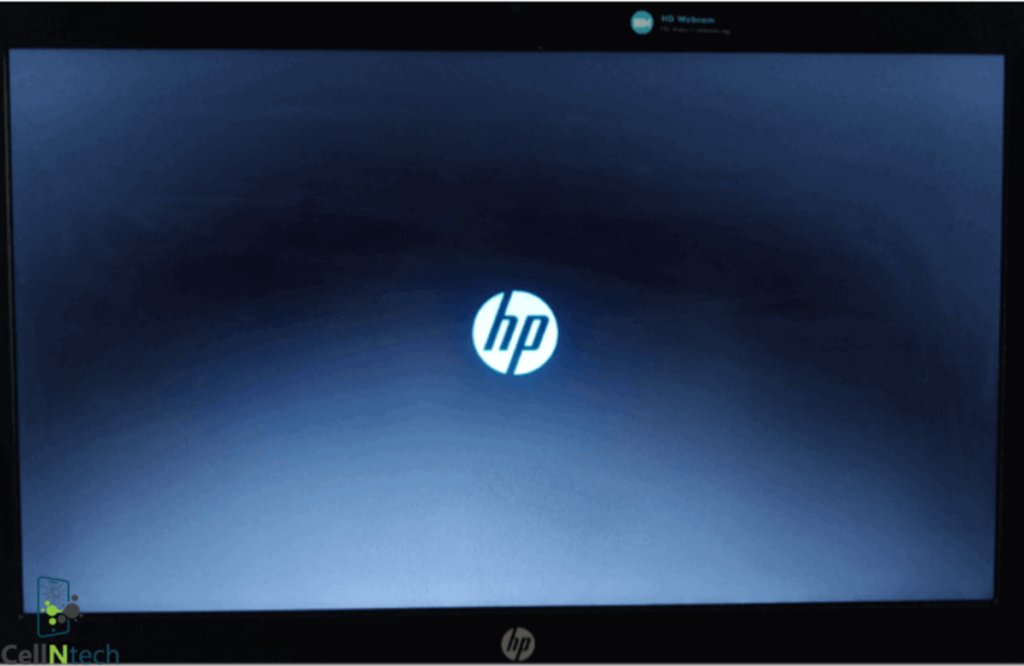
Ever turn on your laptop… and it just stops on the loading screen? Annoying, right? Especially when you have work, school or personal projects waiting. The good news? Most laptops stuck here can be fixed easily.
Try these to fix your laptop stuck on loading screen:
- Hold the power button 10–15 seconds to force shutdown.
- Remove all external devices.
- Perform a hard reset.
- Access Automatic Repair by forcing shutdowns repeatedly.
- Enter Safe Mode to uninstall problematic software.
- Run System Restore if freezes began after an update.
- Reset Windows while keeping personal files.
Different Methods to Fix Laptop Stuck on Loading Screen
Freezes happen. Often at the worst moments. But most issues are fixable.
Force Shutdown & Restart
Step 1: Hold the power button for 10–15 seconds until the laptop shuts off.
Step 2: Wait a few seconds, then press the power button again.
Why it works: This completely cuts power, stopping frozen processes in memory. It resets minor glitches and allows the operating system to start fresh, often solving the freeze immediately.
Remove External Devices
Step 1: Disconnect all USB drives, printers, external hard drives, headphones & memory cards.
Step 2: Restart the laptop.
Why it works: External devices can confuse Windows during startup. Removing them prevents driver conflicts… and ensures the system loads only essential components for a smooth boot.
Hard Reset Your Laptop
Step 1: Turn off the laptop completely.
Step 2: Unplug the charger.
Step 3: Remove the battery if possible.
Step 4: Hold the power button for 30–60 seconds.
Step 5: Reconnect power. And turn your laptop on.
Why it works: Residual electricity can keep components “stuck.” Draining it resets internal circuits and RAM. It allows the system to boot cleanly… without frozen processes.
Boot Into Safe Mode
Step 1: Open Advanced Options from Automatic Repair.
Step 2: Select Troubleshoot > Advanced Options > Startup Settings > Restart.
Step 3: Press 4 or F4 to enter Safe Mode.
Step 4: Remove any recently installed apps or drivers causing issues.
Why it works: Safe Mode loads only essential system files. Problematic software or drivers don’t run, making it easier to identify and fix the cause of the freeze.
Access Windows Recovery Environment
Step 1: Turn on the laptop. When the logo appears, hold the power button to force shutdown.
Step 2: Repeat three times.
Step 3: On the fourth boot, Windows enters Automatic Repair.
Step 4: Go to Advanced Options > Troubleshoot > Advanced Options > Startup Repair.
Why it works: Automatic Repair scans and fixes corrupted startup files. It restores the system’s ability to boot without deleting personal files or applications.
Reset Your PC
Step 1: Go to Troubleshoot > Reset this PC.
Step 2: Choose “Keep my files.”
Step 3: Follow the instructions.
Why it works: Resetting Windows reinstalls the operating system, replacing corrupted system files while keeping your personal data safe. It solves deep issues that other methods may not fix.
Causes of Laptop Stuck on Loading Screen
- Corrupted System Files:
Windows files can get damaged due to crashes, sudden shutdowns, or malware. Damaged files stop processes from running properly, preventing the laptop from booting. Recovery tools can repair or replace these files. - Faulty External Devices:
USB drives, printers, or other peripherals sometimes block startup. If Windows cannot read them correctly, it hangs during boot. Removing these devices allows the system to start normally. - Software Conflicts:
New apps or updates can clash with existing programs. This overloads startup routines and freezes your system. Safe Mode helps identify the conflicting software and remove it safely. - Hardware Issues:
Failing hard drives, bad RAM, or motherboard problems can stop Windows from loading. Running BIOS diagnostics or hardware tests can reveal these faults. Faulty hardware may require repair or replacement. - Incomplete Windows Updates:
Updates that fail or get interrupted can leave the system in a partially installed state. This often causes freezes on the loading screen. Using Automatic Repair or System Restore usually solves the problem.
Conclusion
A laptop stuck on the loading screen is frustrating… but most issues can be fixed at home. Force shutdowns, removing devices, hard resets, Safe Mode, and recovery tools handle almost every problem.
Understanding the causes like the corrupted files, software conflicts, hardware issues, can help prevent repeats.
Safe Mode and Reset options provide solutions… without deleting your personal data. Follow the steps carefully. If you would rather have a professional do it, Cell N Tech is here to help.
Frequently Asked Questions
Can I fix it without losing my files?
Yes. Using Safe Mode or the “Keep my files” reset option repairs Windows while keeping your personal data safe.
How do I prevent future freezes?
Keep Windows updated. Shut down properly. Avoid installing unknown apps. Regular maintenance lowers the risk of freezes.