

Phone
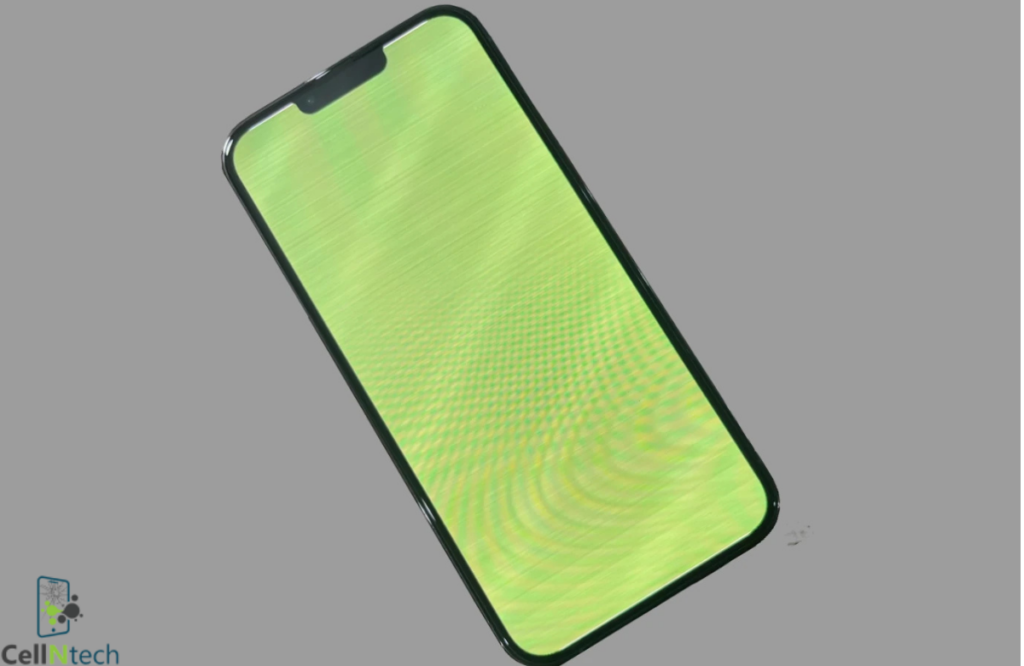
iPhone Screen Flickering Green: How to Fix?
Mar
To fix iPhone screen flickering green:
- Force restart your iPhone by pressing Volume Up, then Volume Down & holding the Side button until the Apple logo appears.
- Go to Settings > Display & Brightness. Turn off True Tone and Night Shift. This often stabilizes the screen.
- If the problem continues, remove any screen protector. Or check for hardware damage.
- Updating iOS & resetting all settings can resolve persistent glitches.
These steps usually restore your iPhone quickly.
How to Fix iPhone Screen Flickering Green
Green flickering can disrupt your daily use. The first step is understanding which solution matches your problem.
Force Restart Your iPhone
A force restart clears temporary software glitches & reloads the system, often fixing the flicker instantly.
Instructions:
- iPhone 8 & newer: Quickly press & release Volume Up, then Volume Down, then press and hold the Side button until the Apple logo appears.
- iPhone 7 / 7 Plus: Press & hold both the Volume Down and Side (or Top) button until the Apple logo appears.
- iPhone 6s and older: Press & hold both the Home & Side (or Top) button until the Apple logo appears.
This forces your iPhone to shut down & restart. Many users report instant improvement after this reset.
Adjust Display Settings
Features like True Tone & Night Shift can sometimes overwork the display sensors. This ends up causing green flickers. Adjusting these settings often resolves the issue.
Instructions:
- Open Settings > Display & Brightness.
- Turn off True Tone (if available on your model).
- Turn off Night Shift if it is scheduled or active.
Remove Screen Protector or Check Hardware
Physical interference or minor hardware damage can trigger flickering. Checking your iPhone helps you rule this out.
Instructions:
- Carefully remove any screen protector.
- Inspect the screen for cracks, scratches or damage.
- If flickering persists visit an Apple store or certified repair center for a professional check.
Even a thin and misaligned protector can block sensors & cause flickering. Removing it often fixes the problem instantly.
Update iOS Software
Outdated iOS can contain bugs that affect display performance. Updating ensures your iPhone has the latest fixes.
Instructions:
- Open Settings > General > Software Update.
- Download and install any available updates.
- Restart your iPhone after updating to apply changes.
Updating prevents recurring software glitches and improves stability, reducing green screen flickering over time.
Reset All Settings
If misconfigured settings cause flickering resetting all system settings often resolves the issue without erasing data.
Instructions:
- Open Settings > General > Transfer or Reset iPhone.
- Tap Reset > Reset All Settings.
- Confirm and wait for your iPhone to restart.
Causes of iPhone Screen Flickering Green
Understanding why your iPhone screen flickers green helps prevent the problem from coming back. Here are the main causes.
Software Bugs
Temporary glitches in iOS or apps can make the screen flicker green unexpectedly. Updating or restarting often resolves this.
- iOS updates with minor bugs affecting display performance
- Conflicting third-party apps causing screen instability
- Corrupted temporary files or cache
- Background processes overloading system resources
- Rarely, incomplete iOS installations
Display Settings Conflicts
Features like True Tone and Night Shift adjust colors automatically. This can sometimes stress the screen sensors. And cause flickering.
- True Tone constantly changes color based on ambient light
- Night Shift alters color temperature at scheduled times
- Auto-brightness misreading ambient light
- Custom accessibility settings interfering with normal display
- Color filters enabled in Accessibility settings
Hardware Damage
Physical damage can affect display performance permanently or temporarily, causing flickers, green tint or unresponsive screens.
- Cracked or scratched screens interfering with sensors
- Liquid exposure damaging internal display connectors
- Loose display connectors inside the iPhone
- Faulty or aged OLED/LCD panels
- Accidental drops causing internal micro-fractures
External Interference
Screen protectors, magnetic cases or other covers can block sensors, sometimes triggering green flickers.
- Misaligned screen protector pressing on the screen
- Thick or metal-backed cases affecting sensors
- Magnetic accessories interfering with display functions
- Dust or dirt under the screen protector
- Pressure applied to screen edges or corners
Overheating
Excessive heat can temporarily distort colors and screen response, sometimes causing flickering or green tint until the iPhone cools down.
- Using the iPhone in direct sunlight
- Running heavy apps or games for long periods
- Charging while performing intensive tasks
- Hot environments like a car in summer
- Faulty battery causing internal overheating
Conclusion
A green flickering iPhone screen is usually not a serious problem. And often it can be fixed at home. Most cases are caused by software glitches, display settings conflicts or simple hardware interference. Like a screen protector or a loose connection. Solutions for it include:
- Force restarting
- Adjusting display settings
- Checking for hardware issues
- Updating iOS
- Resetting all settings
These cover the majority of scenarios. Understanding the underlying causes helps prevent the flicker from returning.
You can always contact Cell N Tech for professional help.
Frequently Asked Questions
Can overheating cause a green screen on iPhone?
Yes. Excessive heat can temporarily distort colors. Let your iPhone cool down before using it again.
How often should I force restart my iPhone to prevent flickering?
Force restarting is only for troubleshooting. Use it when your screen behaves abnormally. Not as daily maintenance.
Will resetting all settings erase my data?
No. Resetting all settings restores system preferences like Wi-Fi and display settings. But keeps apps, photos & personal data intact.