

iPhone
Software vs. Hardware Problems in iPhones
Apr
iPhones deliver great performance most of the time. Yet issues can appear suddenly and cause frustration. Software or hardware problems in iPhones confuse many users daily. Software glitches are often fixed with simple steps at home. Hardware issues usually need professional repair and parts. Knowing the difference saves time and money. This guide explains clear signs and solutions. You learn practical ways to identify each type. Smart diagnosis helps you decide the next best action quickly.
Key Takeaways
- Software problems appear suddenly and often link to recent updates.
- Hardware issues show consistent symptoms across apps.
- Restart and updates fix most iOS issues quickly.
- Battery or screen damage always indicates hardware failure.
- Professional help becomes necessary for physical repairs.
- Early diagnosis extends your iPhone’s lifespan significantly.
Understanding Software vs Hardware Issues in iPhones
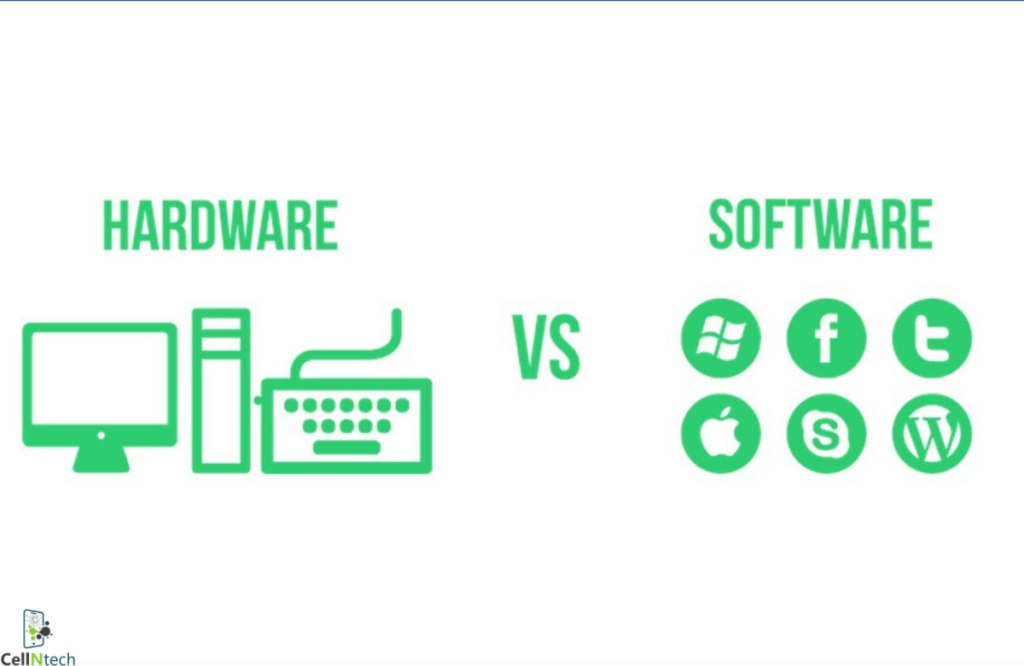
A clear understanding of software and hardware problems helps iPhone owners act wisely. The right diagnosis avoids wasted effort and extra costs.
What counts as a software problem (iOS bugs, apps, settings)
Software problems happen inside the operating system. iOS bugs appear after updates. Apps crash due to conflicts or corrupted files. Wrong settings cause strange behavior. These issues are fixable without opening the phone. iPhone troubleshooting starts with software checks first. Many users solve them at home successfully.
What counts as a hardware problem (physical components)
Hardware problems affect the physical parts of the device. Damaged screens stop touch response. Old batteries drain fast. Faulty cameras produce blurry images. These issues involve real components that wear out. Hardware failure usually needs replacement parts. Physical damage from drops or water often causes them.
Why distinguishing between the two matters
Wrong diagnosis wastes time on useless fixes. You might reset the phone many times for a broken screen. Unnecessary repairs raise costs quickly. Correct identification protects your warranty too. iOS issues rarely need service center visits. Proper knowledge saves hundreds of dollars over time.
Common Software Problems in iPhones
Software problems appear quite often after iOS updates. Most of them respond well to simple troubleshooting steps at home.
- App Crashes and Freezes: Apps close suddenly during use. The screen freezes without warning. Low memory or outdated apps usually cause this. Force close the app then reopen it. Update apps through the App Store regularly. Clear cache to free up space. These steps resolve most crashes quickly.
- iOS Update Glitches and Bugs: New updates sometimes create unexpected problems. Wi-Fi stops working after installation. Battery drains faster than normal. Restart the phone in normal mode first. Check for follow-up patches from Apple. iPhone troubleshooting includes waiting for stable versions. Most glitches disappear within days.
- Slow Performance or Lag: The phone feels sluggish during daily tasks. Apps take longer to open. Background processes consume too much power. Low storage below 20 percent often triggers lag. Disable unnecessary notifications and widgets. Update to the latest iOS version available. These actions restore smooth speed effectively.
- Connectivity Issues (Wi-Fi, Bluetooth): Wi-Fi drops frequently during use. Bluetooth devices refuse to pair properly. Forget the network then reconnect fresh. Reset network settings as a safe step. Software conflicts with VPN apps cause many issues. Toggle airplane mode on and off quickly. This trick solves temporary glitches fast.
Common Hardware Problems in iPhones
Hardware problems develop gradually with normal use. They involve physical wear and usually require expert attention.
- Battery Degradation and Charging Issues: Batteries lose capacity after 500 charge cycles. The phone shuts down suddenly at 20 percent. Charging becomes slow or stops completely. Battery degradation shows in settings under battery health. Replacement restores full performance again. Apple rates batteries as good above 80 percent capacity.
- Screen Damage or Touch Unresponsiveness: Cracks appear after accidental drops. Touch zones stop responding to fingers. Dead pixels create dark spots on the display. Screen replacement fixes these issues permanently. Water damage often causes touch problems, too. Professional screen repair service ensures proper calibration afterward.
- Camera Malfunctions: Photos come out blurry or dark. The camera app fails to launch. Hardware sensors get damaged from impact. Lens scratches affect image quality badly. Cleaning helps minor dirt but not internal faults. Hardware failure here needs genuine parts for the best results.
- Speaker or Microphone Issues: Sound becomes distorted during calls. The microphone picks up no voice clearly. Dust and debris block small openings. Water exposure creates lasting damage. Professional cleaning or replacement solves these faults. Audio quality returns to normal levels afterward.
- Physical Wear and Tear: Charging ports loosen after heavy use. Buttons lose click feel over time. Hardware failure from daily wear appears slowly. Cases and screen protectors reduce such damage effectively. Regular inspection catches problems early.
How to Identify Whether It’s Software or Hardware
Accurate identification prevents wrong repairs. Simple tests help you decide the real cause confidently.
Signs of Software-related Issues
Problems appear only in certain apps. Issues start after a recent update. Restarting solves them temporarily. iOS issues change with software tweaks. They rarely involve visible physical damage.
Indicators of Hardware Failure
The same problem happens in all apps. Physical cracks or swelling appear. Issues continue after full reset. Hardware failure feels consistent every time. Performance stays poor despite updates.
Basic Troubleshooting Steps
Force restart by quick button presses. Reset all settings without data loss. Run Apple diagnostics through settings. These steps separate software from hardware causes. Back up data before major resets always.
When to seek professional repair
Problems persist after all troubleshooting. Physical damage is clearly visible. Error messages mention hardware parts. Visit authorized centers for genuine parts. iPhone troubleshooting ends here for safety.
Conclusion
Software or hardware problems on iPhones require different approaches each time. Software glitches respond to updates and resets. Hardware issues need physical repairs for lasting fixes. Accurate diagnosis saves time and money effectively. Regular maintenance prevents many common troubles. Protect your device with cases and timely updates. Visit Cell N Tech today for expert diagnosis and iPhone repair services that you can trust.
Frequently Asked Questions
How can I tell if my iPhone problem is software or hardware?
Restart the phone completely first. Test in safe mode if possible. Persistent issues after the reset point to hardware failure. Check for visible damage too. These quick tips give clear clues.
Can software updates fix most iPhone issues?
Updates solve many iOS issues and bugs. They improve performance and security. Yet they cannot repair broken screens or batteries. Updates help with software problems only. Hardware faults stay unchanged.
Is it expensive to fix hardware problems in iPhones?
Screen replacement costs vary by model. Battery service remains more affordable. Hardware failure repairs add up quickly without AppleCare. Genuine parts ensure the best results. Compare prices at authorized centers first.
Should I reset my iPhone before going for a repair?
Resetting clears software conflicts safely. It helps technicians identify real hardware faults. Back up all data beforehand. Avoid resetting if the phone refuses to start. This step often reveals the true cause.