

Laptop
How To Remove Permanent Keyboard Marks On Laptop Screen?
Aug
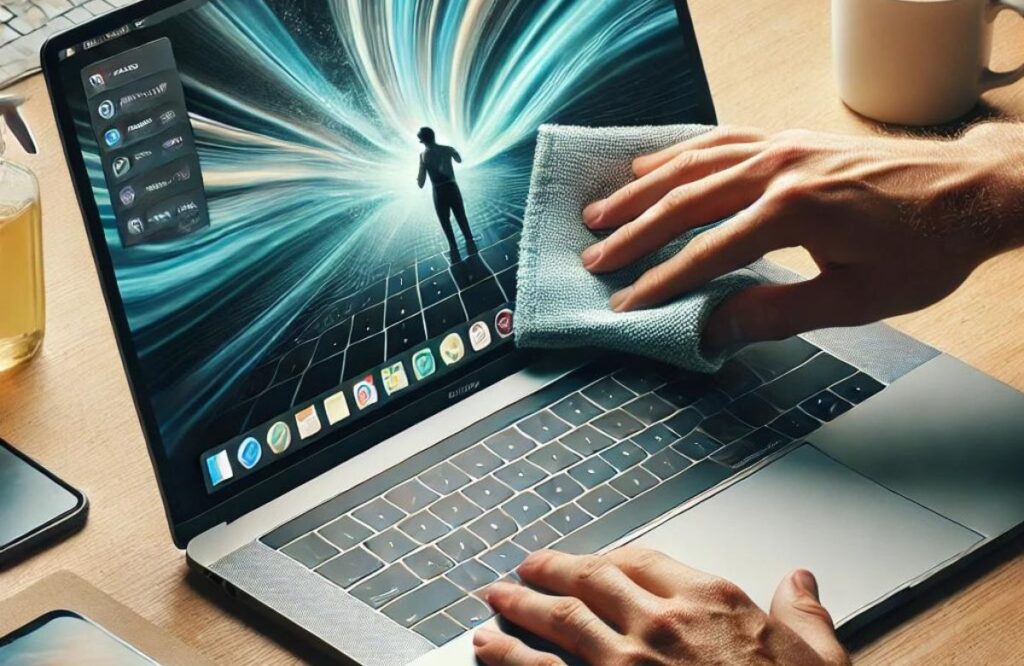
Keyboard impressions on the laptop screen frustrate every user who notices them during work. Keys press directly against the display when you close the lid. These permanent keyboard marks often result from dust or constant pressure in slim designs. You can easily remove permanent keyboard marks from the laptop screen using microfiber cloths, distilled water, and isopropyl alcohol.
To do this, power off your laptop completely. Then, wipe gently from top to bottom. Stubborn marks need alcohol on the cloth, not the screen. This method safely lifts impressions without damaging coatings. Prevention works too through simple barriers.
Why Permanent Keyboard Marks Appear On Laptop Screens
Keyboard marks plague most laptop displays because slim designs eliminate protective gaps. Keys press directly against screens during closure, transferring oils and pressure. Understanding these causes helps you clean off keyboard marks from the laptop screen more effectively. Now consider the specific factors that create these frustrating impressions:
- Skin oils coat keys naturally, then transfer onto screens with every lid closure
- Dust trapped between surfaces scratches anti-glare coatings during repeated contact
- Modern ultrabooks maintain mere millimeters between keyboard and display for thinness
- Heat from internal components softens oils, making deeper impressions possible
- Carrying laptops applies extra external pressure that intensifies key patterns
- Frequent opening and closing reinforce contact points over months of normal use
- Anti-reflective screen layers wear down faster under consistent mechanical stress
Tools Required to Remove Permanent Keyboard Marks On Laptop Screen
Having the right cleaning supplies makes removing keyboard marks safer and more effective. You probably have most of these items at home already.
- Microfiber cloths (at least 2-3 clean, lint-free pieces for different stages)
- Distilled water prevents mineral deposits that tap water leaves behind
- Isopropyl alcohol at 70% concentration works best for stubborn marks
- Screen cleaning solution without ammonia or harsh chemicals (optional but helpful)
- Compressed air can be used for removing loose debris before wiping begins
- Spray bottle for controlled application that prevents over-saturation
- Soft-bristled brush for gentle debris removal from screen edges (optional)
Step-by-Step Guide to Remove Keyboard Marks
Following the proper sequence prevents screen damage while maximizing cleaning effectiveness. Patience is more important than aggressive scrubbing when handling delicate laptop screens.
1. Turn Off and Unplug Your Laptop
Shut down your laptop completely before cleaning begins. This step prevents electrical shorts from moisture exposure. Unplug the power cord right away. Remove the battery too if your model allows it.
A dark screen clearly reveals keyboard marks for easier cleaning. Wait 10 minutes for internal heat to dissipate fully. You avoid damage to sensitive circuits this way. Moisture near powered parts creates real risks during wiping.
2. Blow Away Loose Debris
Grab compressed air next and hold it six inches from your screen. Angle the nozzle at 45 degrees for safe blasting. Short bursts dislodge dust particles effectively before wiping starts.
Loose debris scratches screen coatings if you skip this vital step. Work from top to bottom systematically. Never let the nozzle touch the display directly. Your laptop screen remains protected by first removing debris.
3. Wipe the Screen With a Dry Microfiber Cloth
Take a clean microfiber cloth and fold it in quarters to create fresh sections. Gently wipe straight lines from top to bottom across your laptop screen. This motion lifts surface oils and light keyboard marks without pressure.
Skip paper towels; they scratch delicate coatings easily. Many fresh impressions disappear completely right here. Rotate the cloth frequently to prevent spreading dirt. Your display gains clarity through this simple dry pass first.
4. Dampen the Cloth with Distilled Water
Lightly dampen one corner of your microfiber cloth with distilled water now. No minerals means no streaks later on your screen. Wipe straight from top to bottom consistently.
This step lifts moderate keyboard marks that the dry cloth missed completely. Let surfaces air dry a moment before checking progress. Keep moisture away from edges where it might seep inside. Your laptop display looks clearer after this simple pass.
5. Use Isopropyl Alcohol for Removing Stubborn Marks
Damp cloth handled lighter marks, so now tackle tougher ones with isopropyl alcohol. Use 70% concentration on your microfiber cloth; never spray the screen directly. Light circular motions dissolve stubborn oils effectively.
This step removes permanent keyboard marks on the laptop screen that water couldn’t budge. Alcohol evaporates fast, so moisture risks stay minimal. Higher-strength coatings are more prone to damage, so use 70% carefully. Your display regains full clarity through this targeted approach.
6. Apply a Screen Cleaning Solution (Optional)
Water and alcohol work well, but specialized screen cleaners offer extra protection for delicate displays. Choose ammonia-free laptop-specific formulas. Spray lightly onto your microfiber cloth first, always.
Wipe evenly across remaining spots for final polish. These solutions reduce static that attracts dust later on. Your laptop screen benefits from coating-safe ingredients. Skip this if basic methods have already restored full clarity.
7. Dry the Screen with a Clean Cloth
Switch to a fresh, completely dry microfiber cloth for the final buffing stage. Gentle circular or straight motions eliminate streaks across your laptop display now. Check all corners for any lingering moisture before closing the lid.
Complete drying prevents water spots that ruin your cleaning efforts. Natural air drying works perfectly when combined with soft buffing. Never use heat sources, such as hair dryers, that permanently warp screens.
8. Inspect the Screen
View your laptop screen under bright light from different angles now. Turn the device on to check marks against white and black backgrounds. Repeat cleaning on stubborn spots that linger after buffing. Some deep impressions signal coating damage beyond simple removal.
Keyboard covers prevent future marks effectively going forward. Screen protectors provide lasting protection against daily wear and tear. Your display appears to be restored following this final, careful evaluation.
Conclusion
Patience and proper technique restore your laptop screen from keyboard impressions effectively every time. Microfiber cloths, when paired with distilled water, handle most marks quickly. Isopropyl alcohol dissolves stubborn oils that resist standard wiping.
However, aggressive scrubbing permanently damages delicate anti-glare coatings, so always work gently. Deep marks sometimes signal coating wear beyond home fixes. Cell N Tech offers professional laptop repair when DIY methods fall short. Contact them today for expert restoration service.
FAQs
How do I remove marks on my laptop screen?
Use a clean microfiber cloth with distilled water first for basic cleaning. For stubborn marks, apply isopropyl alcohol to the cloth rather than directly to the screen. Wipe gently in straight strokes, then let it air-dry completely.
Can I use alcohol wipes for my laptop screen?
Yes, but only if they contain 70% isopropyl alcohol without harsh additives. Check the ingredient list carefully before using any pre-moistened wipes. Avoid wipes with detergents or surfactants that damage anti-reflective coatings permanently.
How often should I clean my laptop screen?
Weekly light cleaning with a dry microfiber cloth helps prevent dust buildup. Perform a thorough cleaning with distilled water monthly, or as needed when you notice smudges. Clean immediately after any spills or heavy fingerprint accumulation occurs.