

iPhone
How to Check Whether Your iPhone Was Repaired Properly
Nov
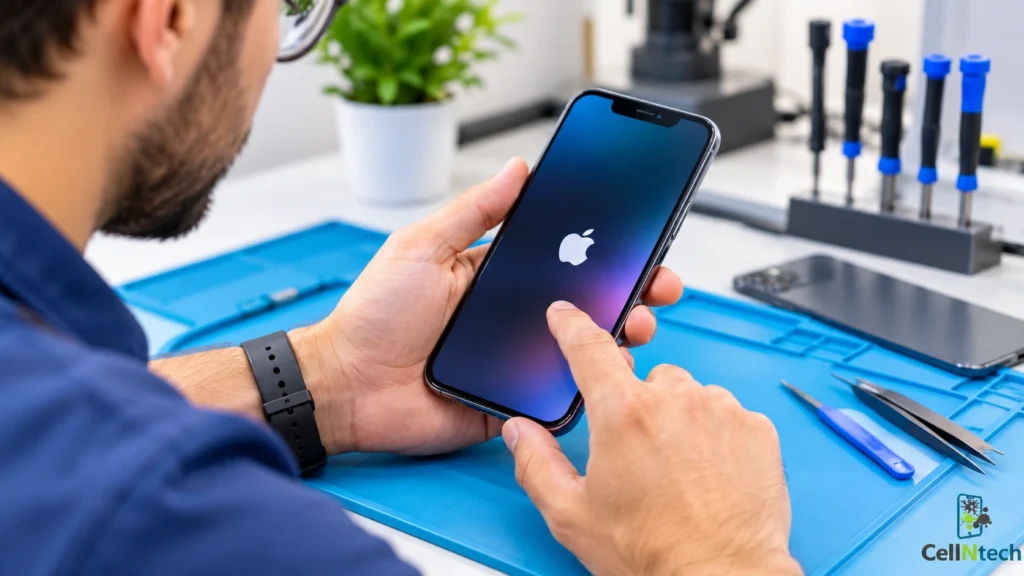
To check whether your iPhone was repaired properly, test every feature the technician could have touched, inspect the phone’s fit and finish and review its parts information in Settings. Try the screen, battery, cameras, speakers, microphones, buttons and security features before you leave the shop. Look for gaps, loose parts and display defects. Then open Settings to see which parts the phone reports.
If you notice that your iPhone isn’t functioning properly after a repair, consider getting it checked by professionals offering reliable iPhone repair services to identify and resolve any remaining issues.
Quick Answer
To check an iPhone after a repair, test the screen, touch response, charging, cameras, flash, speakers, microphones, buttons, Face ID or Touch ID and wireless connections. Look closely for uneven edges, gaps and dead pixels. On iOS 15.2 or later, go to Settings > General > About to see Parts and Service History. If anything is off, document it and contact the repair shop right away, because warranties often depend on prompt reports.
How Can You Check Your iPhone After a Repair?
The best time to test is before you leave the shop or as soon as you get home. Problems are easier to resolve when they are reported quickly.
Test the Screen and Touch Response
Turn the screen on and drag a finger across it (including the edges and corners). Open the keyboard and type a few lines to make sure all the keys work. Try pinching, swiping and scrolling several apps. Look out for any unresponsive areas, ghost touches, lag or flickering. If you notice display flickering, read our guide on how to fix iPhone screen flickering after being dropped.
Check that the brightness works properly and the screen rotates as it should.
Check Battery Charging and Performance
Plug the phone in and make sure it’s actually charging. If your model supports it, test both a cable and a wireless charger. Following a battery replacement, monitor the battery percentage over the next day or two. It should go up and down smoothly, without any sudden spikes or unexplained shutdowns.
You can also go to Settings and check the Battery section to learn how to check your iPhone battery health on supported models.
Test Cameras and Flash
Open the Camera app and take photos with the rear and front cameras. Switch between lenses and zoom levels. Tap to focus and check that images are sharp and free of smudges, spots or dust. Test the flash and record a short video. Check that the camera does not shake, rattle or fail to open.
Check Speakers and Microphones
Play some music at a moderate volume to check the main speaker and listen for any crackle or distortion. Make a phone call to test the earpiece and call audio. Record a voice memo and play it back to test the mic. Try speakerphone, a video call and Siri. Test the speakers and microphones separately to confirm that audio quality remains clear.
Verify Face ID or Touch ID
Set up or test your biometric unlock. Face ID should work in normal lighting, while Touch ID should recognize your fingerprint. Some of the repairs will impact these so it’s worth testing them as early as possible. If you get a message that says you need to complete the repair, follow up on it.
Test Buttons and Connectivity
Press the power and volume buttons and test the Action button or Ring or Silent switch if your model has one. Connect to Wi-Fi and Bluetooth. Confirm that cellular service and the SIM work. Try GPS in a map app. Test any other feature that a technician might have disturbed.
How Can You Tell if an iPhone Repair Was Done Correctly?
Some problems show up visually or by touch. Look closely at the phone in good light.
Look for Gaps or Uneven Screen Edges
The display should sit flush with the frame on all sides. Check the corners and edges for gaps, raised areas or uneven spacing. Run a fingertip along the edge to feel for ridges. A screen that lifts, pops up or looks crooked may not be seated correctly. If the display needs replacing, review our guide to iPhone screen repair or replacement costs.
Check for Loose Parts or Unusual Sounds
Hold the phone up to your ear and give it a gentle shake. Listen for any rattling or clicking. Gently press the back and sides to check for flexing or creaking. A loose component can cause further damage over time. Check that all the screws, covers and the SIM tray fit correctly.
Inspect the Display for Dead Pixels
Open a plain white image and a plain black one and look out for dots, lines, discoloration, and flicker. Look for any yellow or pink tints and uneven brightness. Solid-color backgrounds can help reveal dead pixels, discoloration and display defects. Check both in the dark and in the light.
Watch for Overheating or Unexpected Battery Drain
A phone that’s abnormally hot or draining its battery much faster than it used to needs attention. Note when this occurs, such as during charging or normal use. Some warmth is normal when the phone is under load or charging. If it’s persistently hot or draining the battery very rapidly, then that’s not normal. Make a note of it all so that you can accurately describe it to the repair shop.
How Can You Verify the Replacement Parts Used?
Your iPhone can report information about some of its parts. This helps you confirm what was installed.
Check Parts and Service History
On supported iPhone models running iOS 15.2 or later, open Settings > General > About to view Parts and Service History. The information displayed depends on your model and the components repaired. The section appears only if the iPhone has been repaired. Supported parts depend on the model. Newer models support reporting for more components. Tap an entry to see more detail.
Look for Unknown Part Notifications
Apple explains that an Unknown Part message may appear when a component is non-genuine, isn’t functioning as expected, hasn’t been verified and linked to the device, or has been modified. The phone displays a notification after the first unlock following a repair and again five days later. Do not assume the problem is from the repair. Ask your technician what the message means for your phone and whether anything can be done.
Review Battery and Display Information
Check the status listed for the battery and display. Labels may include Genuine, Unknown, Unverified, Used or Finish Repair. Each means something different. A Finish Repair message means calibration is not complete. Face ID or Touch ID will not work for unlocking or app sign-in until it is done. Take a screenshot so you have a record.
Ask About Repair Parts and Warranty
Ask the technician what parts they used and how they tested them. Request the warranty terms in writing, including length and what is covered. Ask what happens if you find a problem later. Keep your receipt and any work order. Clear answers are a good sign.
What Should You Do if Your iPhone Still Has Problems After Repair?
If the issue persists, professional phone repair services in Calgary can help diagnose hardware problems, inspect connections and determine whether additional repairs are needed.
Document the Remaining Issues
Write down what is wrong, when it began and how to reproduce it. Take photos or short videos that show the problem. Screenshot any Parts and Service History entries. Note whether the issue is new or was present before the repair. Specifics help the technician find the cause.
Contact the Repair Technician
Call or visit the shop as soon as you notice the problem. Bring your phone and receipt. Describe the issue calmly and show your notes or photos. Reporting problems early gives the shop an opportunity to address them before they worsen. Avoid trying to open or repair the phone yourself, since that may affect warranty coverage.
Request a Follow-Up Inspection
Ask for the phone to be checked by a technician. A thorough inspection may involve testing the affected parts, checking connections and confirming that the repair was done correctly. Ask what the technician found and what they plan to do. Request written documentation if additional repairs are needed.
Check the Repair Warranty
Review the terms of your warranty. Find out what it covers, how long it lasts and whether it applies to the repair or the parts. Repair warranties typically cover specified parts or workmanship. Review the terms carefully and report suspected repair-related problems promptly. If the shop cannot resolve the issue, consider contacting the part manufacturer, a consumer protection agency or another repair provider for a second opinion.
Conclusion
A proper iPhone repair should leave your phone working normally and looking correct. Test the screen, battery, cameras, audio, security features and buttons. Inspect the fit of the display and look for defects. Review Parts and Service History and ask questions about the parts used. If anything is wrong, document it and contact the shop quickly. With a few minutes of testing, you can check an iPhone after a repair and catch problems while they are still easy to fix.
If your iPhone still isn’t right after a repair, bring it to CellNtech for a professional iPhone device inspection and repair We will look it over, explain what we find and repair the issue if needed.